
How to Change Your IP Address on Mac
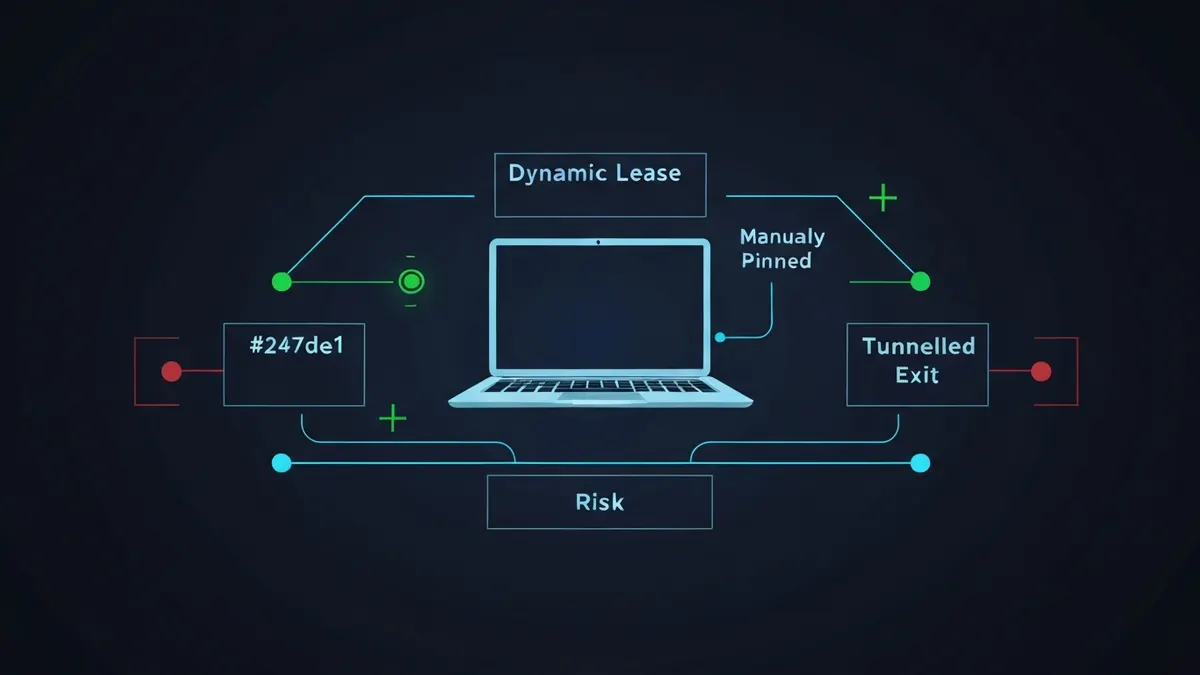
On a Mac you can change your private IP by renewing your DHCP lease from your router, set a static private IP for reliable port forwarding, or replace your public IP entirely using a VPN. This guide covers all three approaches for macOS.
Method 1 - Renew DHCP Lease (New Private IP)
| Method | Steps |
|---|---|
| System Settings (Ventura+) | System Settings → Network → select Wi-Fi or Ethernet → Details → TCP/IP tab → click "Renew DHCP Lease" |
| System Preferences (Monterey and earlier) | System Preferences → Network → select connection → Advanced → TCP/IP → Renew DHCP Lease |
| Terminal | Run sudo ipconfig set en0 DHCP (replace en0 with your interface name) |
Method 2 - Set a Static Private IP on Mac
Go to System Settings → Network → select your connection → Details → TCP/IP tab. Change "Configure IPv4" from "Using DHCP" to "Manually". Enter your chosen IP address (e.g. 192.168.1.150), the subnet mask (255.255.255.0), and your router's IP as the router/gateway. Click OK and then Apply. Your private IP is now fixed and will survive reboots and reconnections.
Method 3 - Change Your Public IP with a VPN
Install a VPN client for macOS (NordVPN, Mullvad, ProtonVPN, ExpressVPN all offer native macOS apps). Connect to a VPN server of your choice. All outbound traffic uses the VPN server's IP address instead of your home ISP's IP. Verify by visiting whatsmyipnow.com - The displayed IP and location should match the VPN server.
Key Points
- Renewing the DHCP lease may or may not give you a new private IP - It depends on your router's lease table. If your old IP lease has not expired, the router typically re-assigns the same address.
- Your public IP is controlled by your ISP, not your Mac. To change it, restart your router (some ISPs assign a new public IP on reconnect) or use a VPN.
- macOS network interfaces: en0 is typically Wi-Fi, en1 is typically Ethernet or a USB-C adapter. Run
ifconfig -lin Terminal to list all interfaces. - After changing your IP, run a DNS leak test to confirm your DNS is routing through the correct path.
- macOS includes a built-in IKEv2/IPSec VPN client (System Settings → VPN → Add VPN Configuration) if you have access to a corporate or self-hosted VPN server.
Useful Terminal Commands for IP Work on macOS
| Command | What It Does |
|---|---|
ipconfig getifaddr en0 | Prints the private IPv4 address of the Wi-Fi interface |
sudo ipconfig set en0 DHCP | Releases and renews the DHCP lease on en0 - Terminal equivalent of "Renew DHCP Lease" |
networksetup -listallnetworkservices | Lists network services (Wi-Fi, Ethernet, VPNs) by name for use in other networksetup commands |
networksetup -setmanual "Wi-Fi" 192.168.1.150 255.255.255.0 192.168.1.1 | Sets a static IP, subnet mask, and gateway on the Wi-Fi service in one line |
networksetup -setdhcp "Wi-Fi" | Reverts the Wi-Fi service back to automatic DHCP addressing |
sudo dscacheutil -flushcache; sudo killall -HUP mDNSResponder | Flushes the macOS DNS cache - Good practice after network changes |
Forcing a Genuinely New Address
Why renewing often returns the same private IP
Your router's DHCP server keeps a lease table keyed on your Mac's hardware (MAC) address, and deliberately re-issues the same IP to a returning device. macOS also rotates Wi-Fi MAC addresses for privacy on recent versions (System Settings → Wi-Fi → Details → Private Wi-Fi Address), and switching that setting between Fixed and Rotating makes the router treat your Mac as a new device - Usually producing a genuinely different lease.
Public IP: the router reboot lottery
Unplugging your router for a few minutes sometimes yields a new public IP, but many ISPs map the address to your router's WAN MAC and re-issue the same one for weeks. If a fresh public IP matters - For example to escape an IP-based block - A VPN is the only method that works on demand. Confirm the change with an IP lookup before and after.
Why How to Change Your IP Address on Mac matters
Pick the method that matches the goal. Connection glitch or address conflict on your home network: Renew DHCP Lease in System Settings fixes it without touching anything else. Hosting, screen sharing, or port forwarding: a static private IP (or a DHCP reservation set in the router, which is tidier) keeps the target stable. Privacy or region problems: only the public IP matters, so use a VPN and verify with the leak test that DNS and IPv6 follow the tunnel too. The general theory behind all three is covered in how to change your IP address.
Questions about How to Change Your IP Address on Mac
Does Renew DHCP Lease on a Mac change my public IP?
No. It only asks your own router for a fresh private address on the local network. The public IP belongs to the router's connection with your ISP and is unaffected by anything done in System Settings - Changing it requires a router reconnect, an ISP lease rollover, or a VPN.
Which interface is en0 on my Mac?
On modern Macs en0 is almost always Wi-Fi, with Ethernet or USB-C adapters appearing as en1 and higher, but the mapping varies by model. Run networksetup -listallhardwareports in Terminal to see exactly which device name belongs to each port before using it in a command.
Is a static IP on my Mac the same as a static IP from my ISP?
No - They are different layers. A manual IP in System Settings fixes only your private address inside your home network. An ISP static IP is a paid service that fixes your public address on the internet. Setting one has no effect on the other.
Continue learning about How to Change Your IP Address on Mac
Technical sources for How To Change IP On Mac
The technical claims on this page are drawn from the primary specifications and vendor documentation below.
- Apple — Change TCP/IP settings on Mac Apple Support